
On this page
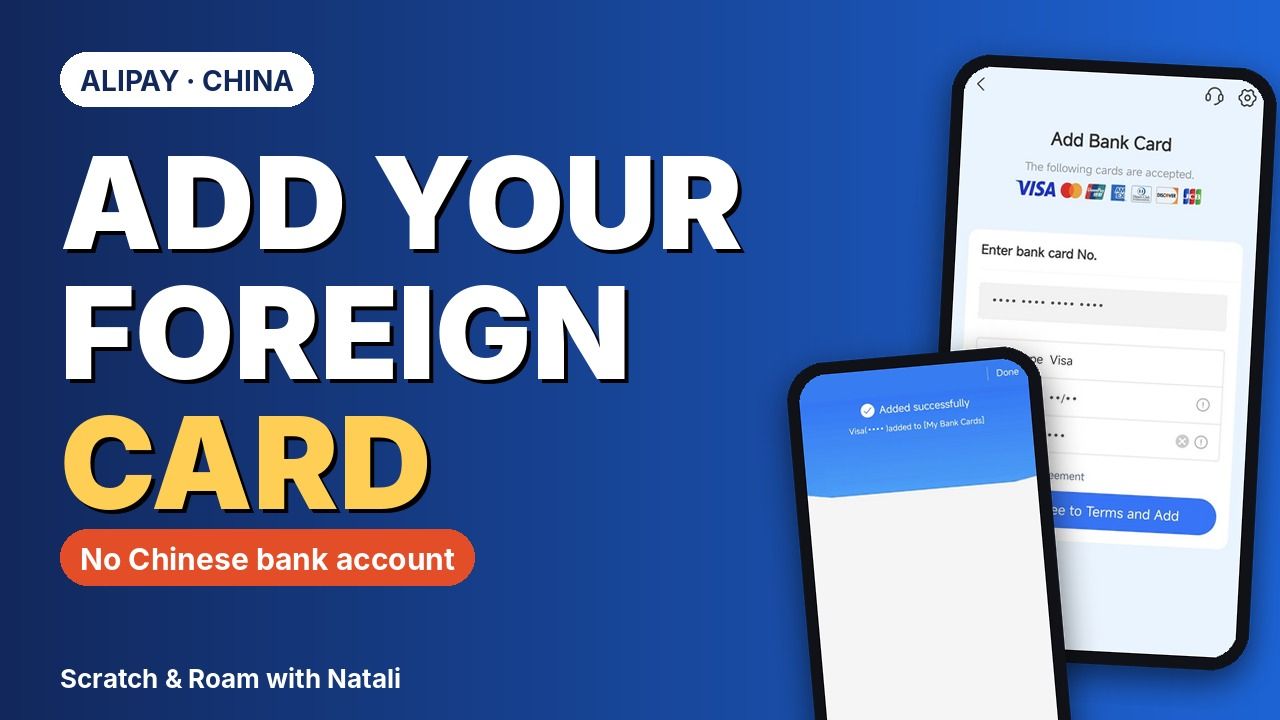
To pay in China you need a card linked to Alipay. You do not need a Chinese bank account. This guide shows how I added my own Visa card to Alipay on my phone: where Bank Cards is, which cards the screen accepts, the tap-your-card (NFC) option that recognised my Visa, typing the details by hand, and the screen that tells you it worked. It ends with the transaction history, so you know where to check your first payments. Using WeChat too? See how to add a foreign card to WeChat Pay, or which one I used for what.
The screenshots are from my own phone. I have hidden my card number, expiry date, CVV2 and the last four digits, and the names of people in my payments. Checked on 30 October 2026.
Quick answers
How do I add a foreign card to Alipay?
Open Alipay, go to Bank Cards, tap Add Bank Card, type the card number, expiry date and CVV2 (or tap the card on your phone with NFC and then type the CVV), tap Agree to Terms and Add, and look for Added successfully.
Which foreign cards does Alipay accept?
The Add Bank Card screen on my phone listed Visa, Mastercard, UnionPay, American Express, Diners Club, Discover and JCB. Alipay can change the list, so check your own screen.
Do I need a Chinese bank account?
No. I added my own Visa card from home, with the number, expiry date and CVV2. Alipay may still ask for other checks, so do the setup before you fly.
Can I add the card by tapping it on my phone?
Yes, there is an NFC option called NFC Card Binding. You hold the chip of the physical card near the phone, then tap Start. I tried it and Alipay recognised my Visa, then asked me to type the CVV. The screen shows the Visa and Mastercard logos, so for other cards, type the details by hand.
Is there a fee for paying with a foreign card?
I do not give a fee here because I could not confirm one from Alipay. Third-party sources report a 3% Alipay fee above 200 yuan, and your own bank may add a foreign payment fee. Read the foreign card question in the FAQ and check with your bank.
Where do I see what I paid?
In the transaction history. It shows each payment with its date, category and amount in yuan.
Why will my foreign card not add? (suggestions, not tested)
I did not get an error when I added my own card, so these are things to try, not fixes I verified. Check your card brand is on the accepted list on the Add Bank Card screen. If the NFC tap does not recognise the card, type the number by hand. Check every digit, the expiry date and that the CVV2 is the code on the back.
Will Alipay ask for a verification code or my passport?
I was not asked for either during the steps in this guide. The app may ask for extra checks in other cases, so follow what your own screen says, and do the setup at home before you fly.
Can I add a Revolut or Wise card?
I did not test it, so I cannot say. Whether these cards link depends on the card. Try it at home, and carry cash and a second card in case it does not work.
Does adding the card mean payments will definitely work?
No. Adding a card only shows the app accepted it. A real shop payment is the only proof, so carry some cash and a second card for your first days in China. See the foreign card question in the FAQ.
The 7 steps, in order
- 1
Open Bank Cards in Alipay
Open the Alipay wallet and go to Bank Cards. My page already listed one Visa card, and the Add Bank Card button is at the top right. The menu names can differ slightly between app versions and languages, so if you cannot find it, use the search bar in Alipay and type bank cards.
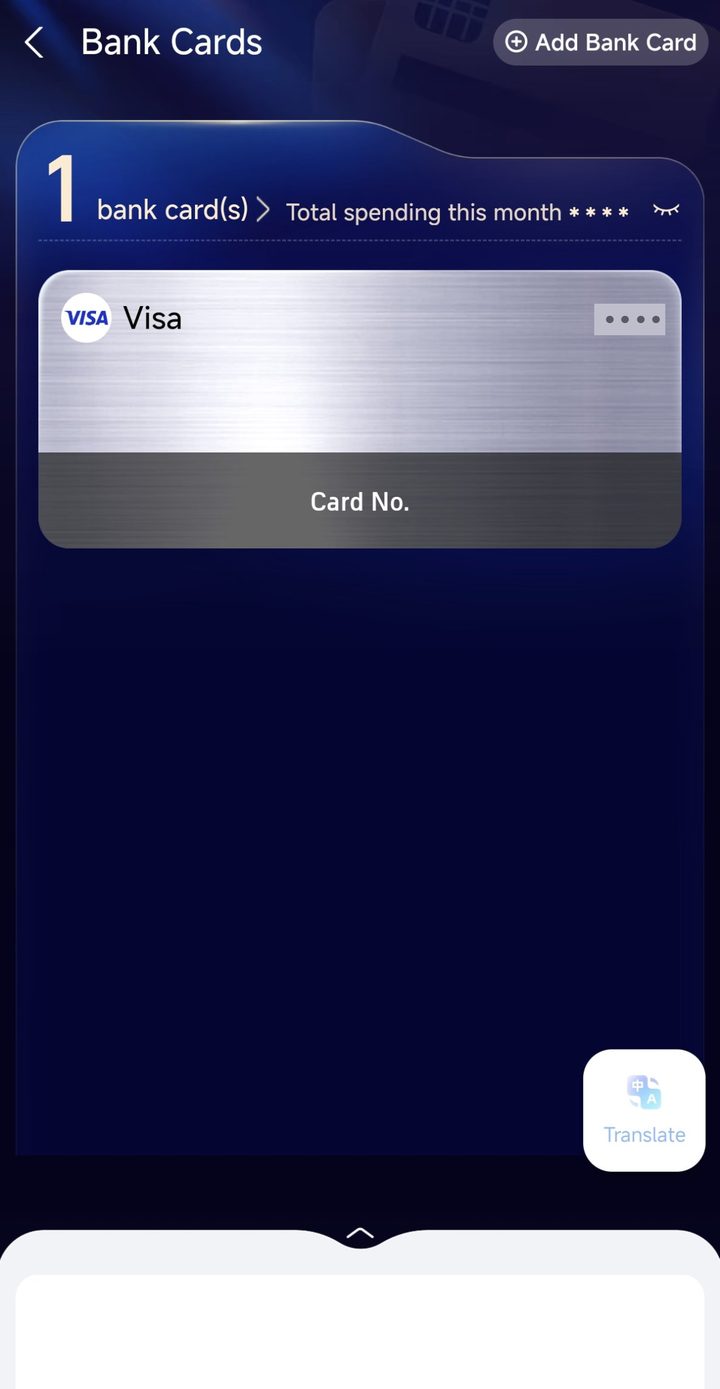
Bank Cards, before: one Visa card. Tap Add Bank Card. Screenshots from my own phone, with my card details hidden. Tap a picture to open it larger.
- 2
Tap Add Bank Card and check your card is accepted
The Add Bank Card screen lists the cards it takes. On my screen the logos were Visa, Mastercard, UnionPay, American Express, Diners Club, Discover and JCB. Check your card brand is on the row before you start. Alipay can change this list, so trust your own screen.
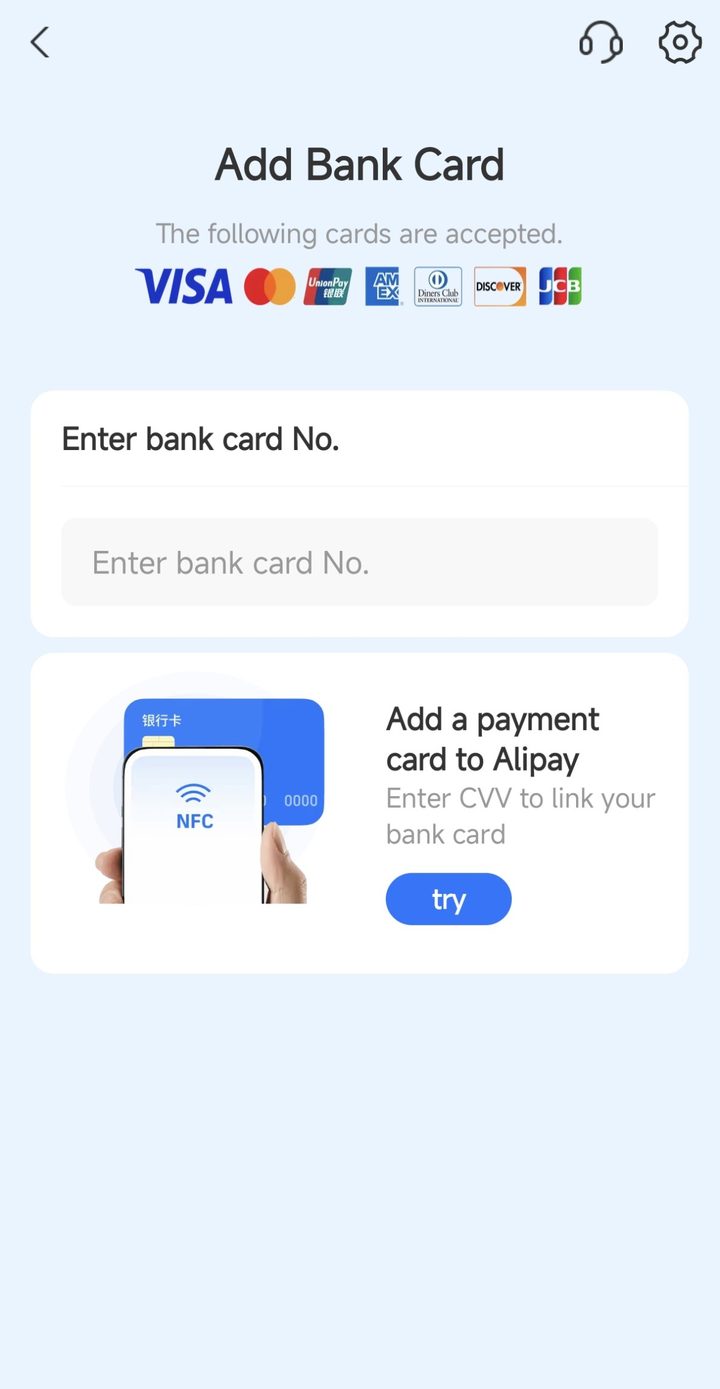
The accepted cards on my screen, and a try button for the NFC option. Screenshots from my own phone, with my card details hidden. Tap a picture to open it larger.
- 3
Choose how to add it: tap your card, or type the details
Under the number field there is a box that says Add a payment card to Alipay, with a try button. Tap it and you reach NFC Card Binding: hold the chip of your physical card near the phone's NFC area, then tap Start. I tried it and it recognised my Visa card, then asked me to type the CVV myself. The screen shows the Visa and Mastercard logos, so I would not count on it for other brands. You can also skip it and type the details by hand: the next step shows that way, and it works for any card on the accepted list.
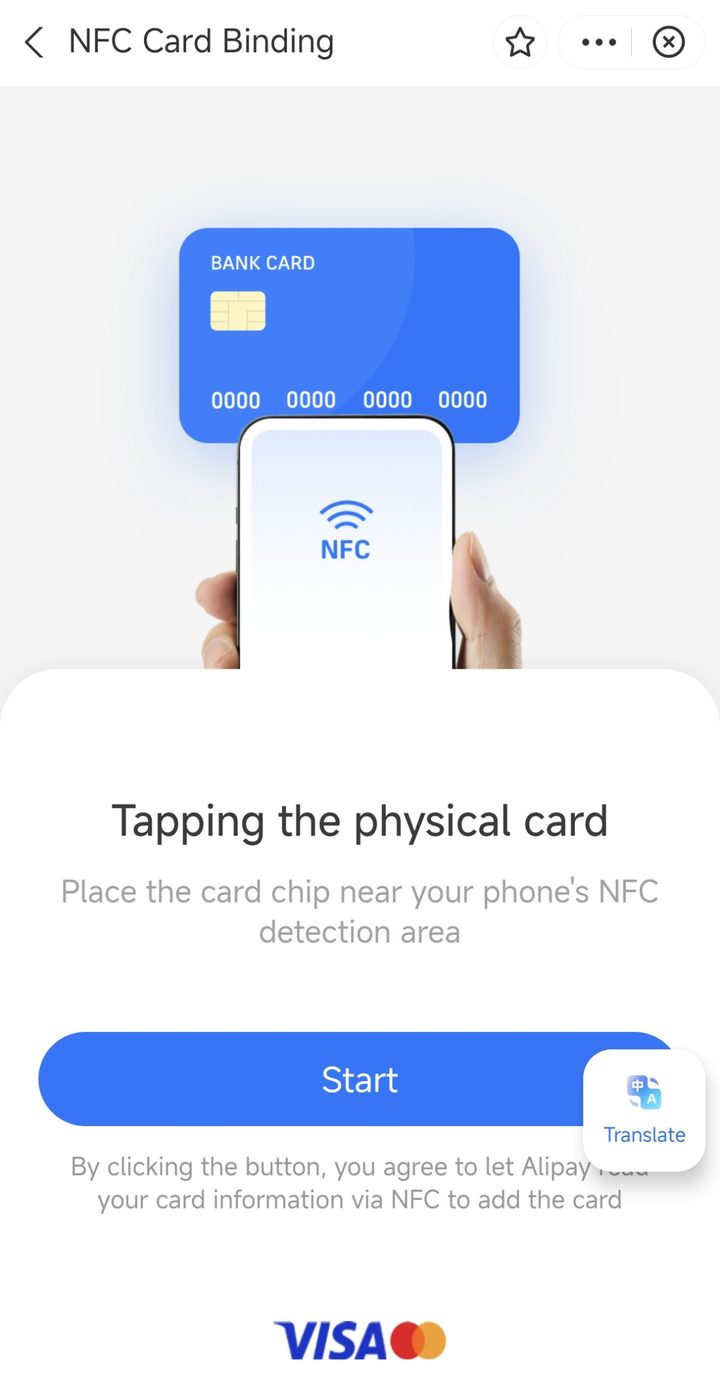
The NFC option: hold the card chip near your phone. It recognised my Visa, then asked for the CVV. Screenshots from my own phone, with my card details hidden. Tap a picture to open it larger.
- 4
Type the card number, expiry date and CVV2
Type the long card number, then the expiry date and the three-digit CVV2 from the back of the card. The card type filled in by itself as Visa. Check every digit before you go on. I have hidden my own numbers in the screenshot, and you should do the same if you ever share yours.
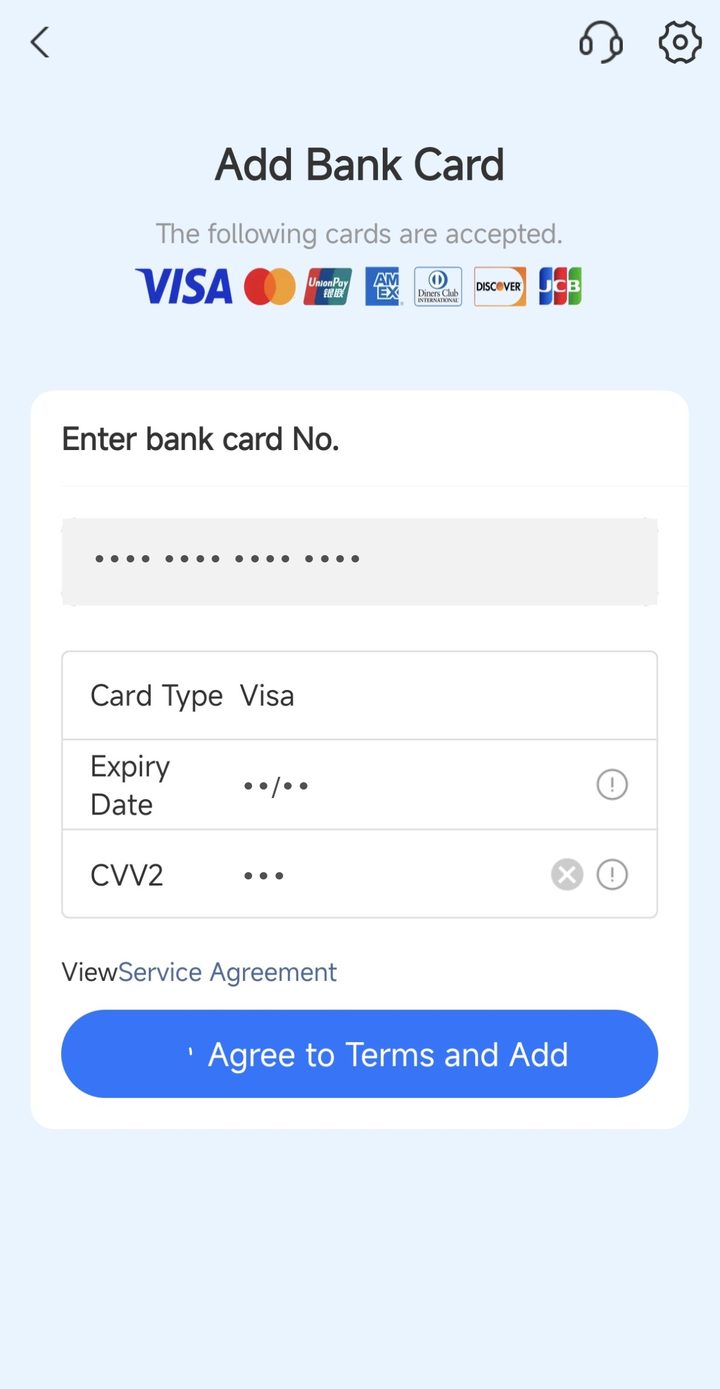
Card number, expiry and CVV2. I hid mine here. Card type fills in as Visa. Screenshots from my own phone, with my card details hidden. Tap a picture to open it larger.
- 5
Read the agreement and tap Agree to Terms and Add
Under the form there is a Service Agreement link. Open it, and use the floating Translate button if it is in Chinese. When you are happy, tap the blue Agree to Terms and Add button.
- 6
Look for Added successfully, then tap Done
You should see Added successfully with a line that the Visa card, with its last four digits, was added to My Bank Cards. Tap Done. Go back to the Bank Cards page: it now said 2 bank cards, and the new Visa was listed under the first one.

Added successfully. Tap Done. 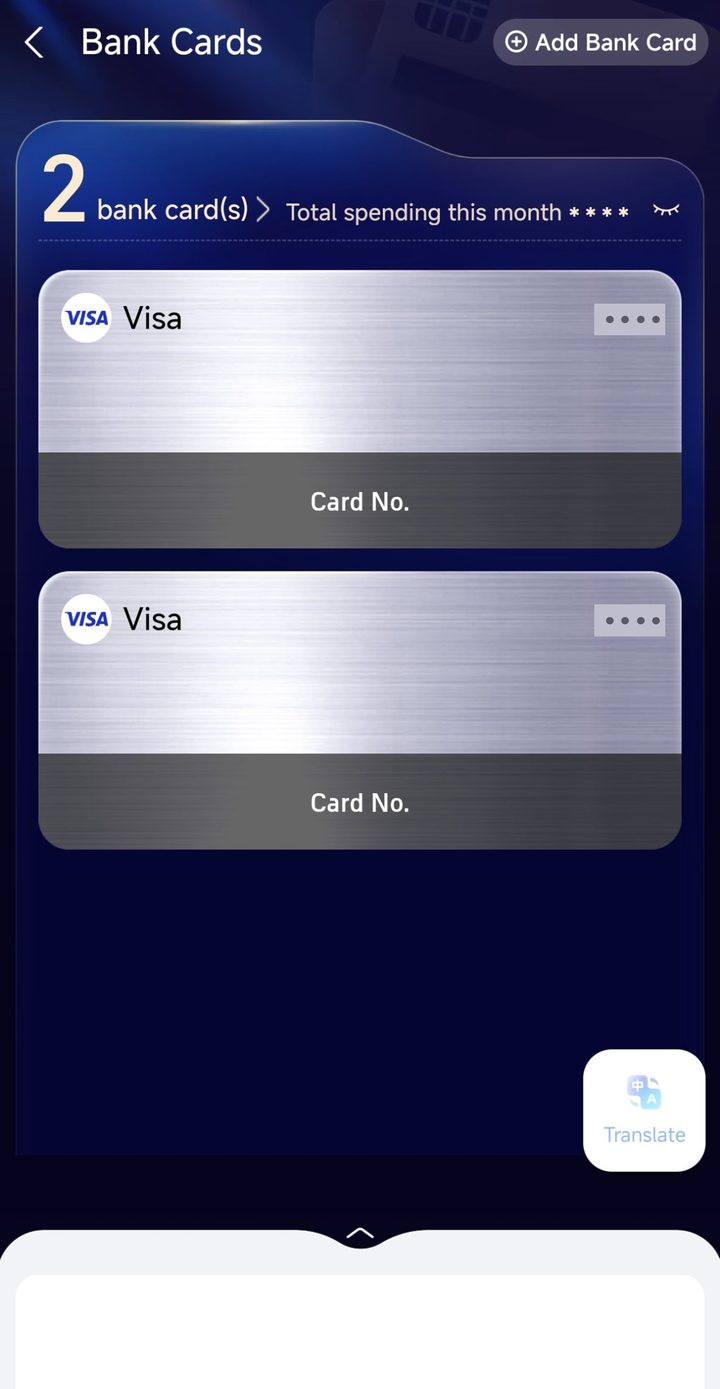
Bank Cards, after: the new Visa card is listed. Screenshots from my own phone, with my card details hidden. Tap a picture to open it larger.
- 7
Check your payments in the transaction history
After you spend, open your transaction history in Alipay. Each row shows what the payment was for, the date and time, a category such as Transport, and the amount in yuan. At the top of the month you see how much you sent and received. My April page shows two Transport rides, several QR code payments to shops and a small 5.00 payment that looks like a metro fare. Names of people are hidden. Compare it with your bank statement later: your bank converts the yuan into your own currency and may add its own fee.
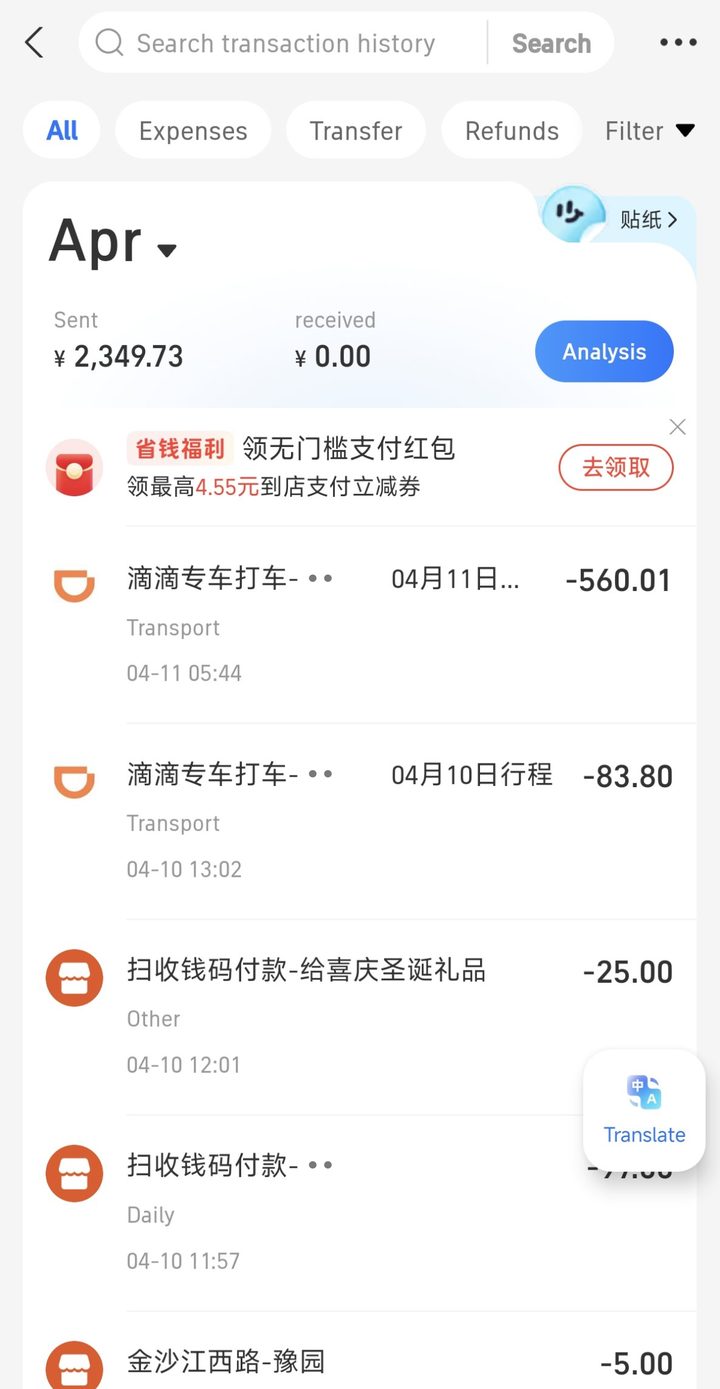
Transaction history: every payment shows in yuan with the date and category. Screenshots from my own phone, with my card details hidden. Tap a picture to open it larger.